Add Password Protection to PDF Files in Adobe Reader
Millions of people open PDFs with Adobe Acrobat Reader every day, but when it comes time to lock a document with a password, they hit a frustrating paywall. Here is exactly what is possible, what is not, and the most secure alternatives.
By the Editorial Security Team•Updated Recently•7 min read
Quick Answer
You cannot password protect a PDF using the free desktop version of Adobe Acrobat Reader. Adobe restricts document encryption strictly to its paid Acrobat Pro software or premium online subscriptions. To add a password without paying for Adobe Pro, you must either use free native OS tools (like Mac Preview), free external utilities, or dedicated document security software.
Password Protect PDF in Adobe Reader — What's Possible
If you are searching for "how to password protect pdf in adobe reader free", you are likely staring at a menu choice that prompts you to upgrade. Understanding the difference between Adobe's products is the first step to securing your files.
Adobe Reader vs Acrobat — PDF Password Protection
Adobe Acrobat Reader (Free): The standard free reader. It can open password-secured PDFs (if you know the password), but it cannot encrypt or add passwords to unprotected files.
Adobe Acrobat Pro (Paid): The full suite. It lets you add both "Open Passwords" and "Permissions Passwords" natively.
Adobe Online Services: Adobe offers a web tool to password protect a pdf document, but it often requires a premium account or limits usage for free accounts.
Find Your approach
Document Protection Method Selector
What are you trying to accomplish?
Best Free Adobe Acrobat Alternatives for PDF Protection
Since the free Acrobat Reader cannot lock your document, here are the best alternative approaches to protect your document before emailing or sharing.
approach 1: Using Mac Preview (Free Native OS Tool)
Best for Mac Users
If you are on a Mac, you do not need Adobe or any external software. Apple's native Preview app handles PDF encryption natively.
Open your PDF using the Preview app.
Go to File > Export... (Do not choose Export as PDF).
Check the box next to Encrypt.
Enter and verify your chosen password.
Click Save.
Security Level: High (AES encryption). Anyone attempting to open it will need the password, even on Windows.
approach 2: Microsoft Word Export (Windows Workaround)
Best for Windows Users
If you created the document in Microsoft Word before turning it into a PDF, you can apply a password during the save process.
Open your source document in Microsoft Word.
Go to File > Save As.
Choose PDF from the dropdown format menu.
Click the choices button.
Check the box for "Encrypt the document with a password" and click OK.
Limitation: This only works if you have the original Word document. It cannot lock an current, standalone PDF.
approach 3: Adobe Acrobat Pro (If You Have It)
Best for Creative Cloud Subscribers
If you realize you have access to Acrobat Pro, here is ways to use it:
Open the PDF in Adobe Acrobat Pro.
Go to Tools > Protect.
Select Protect Using Password.
Choose whether you want to restrict Viewing or Editing.
Type your password and apply.
Permissions Password vs Open Password — Explained
When applying security, you will often see two choices. It is vital to understand the difference:
Open Password (Document Open Password): The user cannot see the contents of the PDF at all without the password. This is true document security software behavior.
Permissions Password (Master Password): The user can open and read the PDF, but they are restricted from printing, copying text, or making edits without the password. Warning: Permissions passwords are notoriously straightforward to bypass with cheap external tools. Do not rely on them for sensitive data.
Document Password Strength — What Really Matters
A password-secured document is only as safe as the password itself. since documents can be downloaded and brute-forced offline, short passwords are highly vulnerable.
Evaluate Your Document Password
Waiting for input...
Head-to-Head: PDF Protection Methods
How do the various approaches stack up when you need to prevent document copying or protect office files?
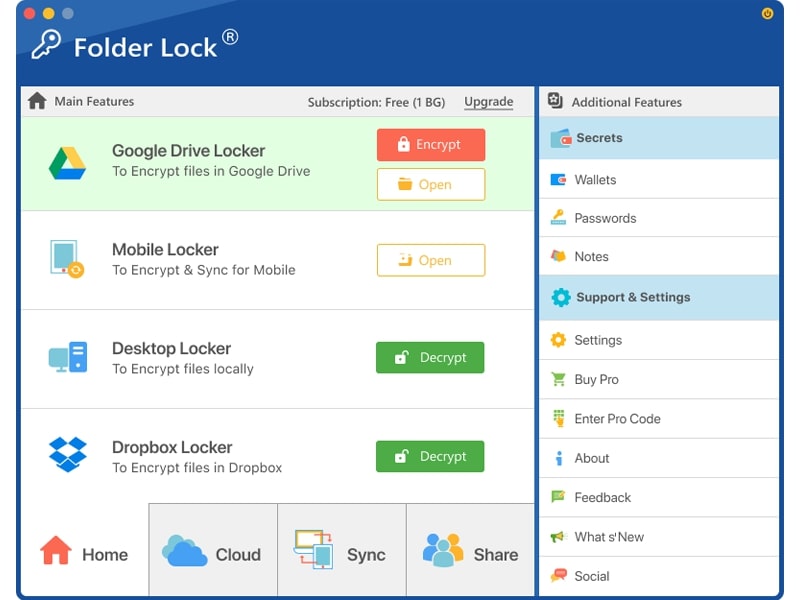
If you find yourself constantly needing to password protect a pdf document, secure office files, or lock USB drives, relying on one-off PDF tools is inefficient. We recommend using dedicated security software like Folder Lock to encrypt your data locally before it ever reaches the cloud.
Beyond Basic Passwords: Cloud Syncing and Cross-Platform Security
One of the biggest drawbacks of native PDF password security is the lack of flexibility. If you lock a file on your Mac, how do you securely access it on your Android phone? What happens if your hard drive crashes?
Modern document security requires more than just a localized password. Dedicated encryption utilities solve these workflow bottlenecks by offering dynamic, cross-platform protection:
Encrypted Cloud Syncing: Advanced tools let you create secure "lockers" that sync directly with your current Google Drive, Dropbox, or OneDrive accounts. Your PDFs are encrypted locally before they are uploaded, ensuring that even if your cloud provider is breached, your documents remain unreadable.
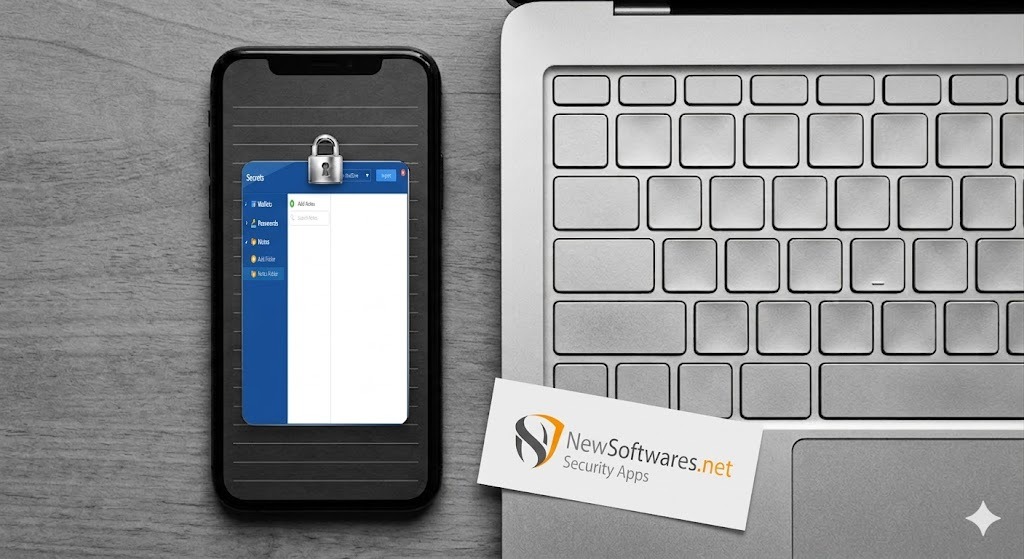
Cross-Device Accessibility: By utilizing companion apps for iOS and Android, you can securely open, edit, and re-lock your sensitive PDFs on the go. The encryption seamlessly bridges your desktop and mobile environments.
Secure Asymmetric Sharing: Instead of emailing a protected PDF and then sending the password in a separate, vulnerable text message, robust software utilizes public and private key mechanics. This lets you authorize selected colleagues to open the document using their own credentials, completely eliminating the need to transmit shared passwords.
Problem Solving: Managing Password-Protected PDFs
Dealing with locked documents can result in a few frequent headaches. Here is how to handle them securely.
Ways to remove password from PDF
If you are the owner of a document and want to remove the password permanently so you don't have to type it every time:
Open the PDF in a capable reader (like Acrobat Pro or Google Chrome).
Enter the password to unlock it.
If using Acrobat: Go to Tools > Protect > Encrypt > Remove Security.
If using Chrome: Click the Print icon. Change the destination to "Save as PDF". Save the file. The new copy will be unencrypted. (Note: This only works if printing is not restricted by a permissions password).
What to do if you forgot your document password
If you forget the password to a PDF you encrypted natively, there is no straightforward "forgot password" reset button. PDF encryption is offline. Your best choices are:
Check your password manager or secure notes.
Search for the original, unencrypted source file (like the Word doc it was exported from).
If you used a central system like Folder Lock to secure a master folder, you only need to remember your master vault password to access all documents inside.
Security Note: We do not recommend using online "PDF unlocker" tools for sensitive files, as you must upload your private document to an unknown server.
Can a password-protected document be hacked?
Permissions passwords (which just prevent printing/copying) are easily bypassed. Open passwords (which encrypt the whole file) are highly secure, provided the password is long and complex. A 12-character alphanumeric password encrypting a PDF with AES-256 would take current computers millions of years to brute-force.
Common Questions and Answers
Still have questions about how to password protect pdf files in adobe reader? Browse our selected answers below.
Can I password protect a PDF document using Adobe Reader free?
No. Adobe Acrobat Reader DC (the free version) only lets you view, comment, and print PDFs. The "Protect" function requires a paid subscription to Acrobat Pro.
The best way to secure documents before emailing? Explained
Instead of relying on PDF-selected passwords which require compatible software on the recipient's end, the most secure approach is placing the documents in an encrypted ZIP file or using secure cloud-sharing links with native access controls. If sharing via USB, use tools to password protect a flash drive.
Ways to password protect multiple files at once?
Batch password security is not native to most basic PDF readers. To secure multiple files (PDFs, Word docs, Excel sheets) simultaneously, you should place them in a single folder and use a tool like Folder Lock to encrypt the entire directory in one click.
Can Google Chrome open password-protected PDFs?
Yes. If you drag a password-secured PDF into Google Chrome, it will prompt you for the password. Once entered, you can read the document. You can also use Chrome's "Print to PDF" function to save an unlocked copy (if printing permissions allow it).
How do I password protect a USB drive without BitLocker?
BitLocker is only available on Windows Pro/Enterprise. If you are on Windows Home or want a portable solution, you need external software like USB Secure or Folder Lock to create an encrypted, password-secured partition on your flash drive.